This description assumes your student ID is: 0670623673 and your password is: mypassword.
When you connect to your X:drive use the actual values for you.
If you don't know your password, sign the sheet at the desk in the Media Center, and someone will reset it for you. It will be reset to: pass#### where "####" is the last 4 digits of your ID.
Enough preliminaries. Let's connect to your X:drive!
Click on a blank area of the desktop and choose "Connect to Server" from the "Go" menu:
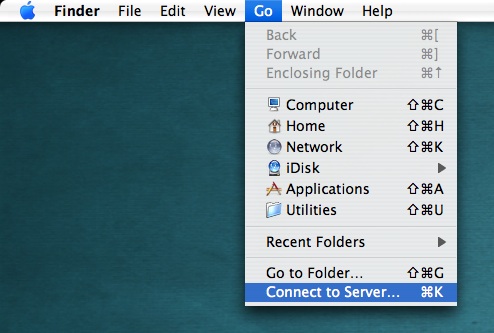
After this, a "Connect to Server" box will pop up. Fill this in as shown below, except using YOUR 10-digit ID instead of 0670623673. You can copy the first part here:
copy this --> smb://3861-fileserv/students/ <-- copy this
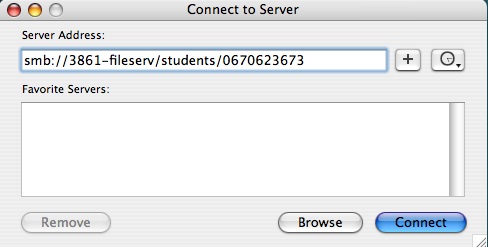
When you have replaced the "0670623673" with your own ID number, press the "Connect" button. You will then see this, or at least you will after you fill in your ID and password.
Make Sure the "Remember this password..." box is NOT checked:
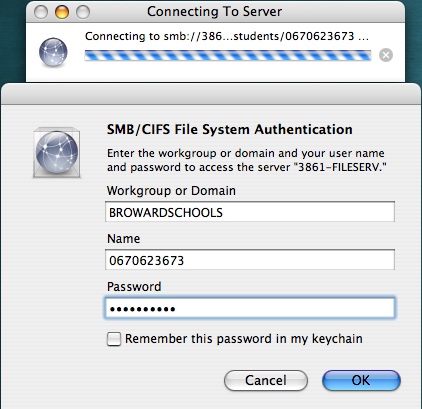
Press "OK". If all goes well you will see your X:drive folder in a window like this:
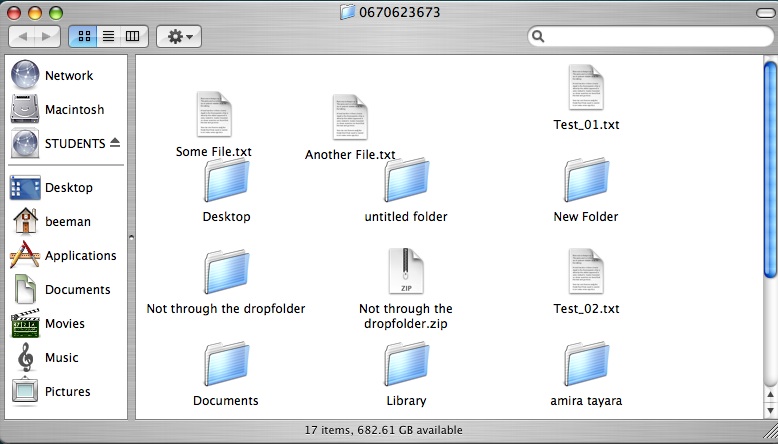
You can now use any of the files in your X:drive just as if they were on the Mac, including copying them to the desktop if you want. When you are done, click the eject button for your drive (the funny upward-pointing symbol after "Students") and drag any files you put on the desktop of the Mac to the trash. That will ensure that others who use this computer after you can't mess with your files.
Enjoy:
- Bee-Man.